Photo booth software for Windows
Your booth's back screen, live.
BoothLoop is photo booth software for Windows that turns the vertical rear screen of your booth into a live slideshow. It is built for photo booth owners running ICON-style booths, and for any Windows booth with a second portrait screen. It runs on the same PC as LumaBooth for Windows (formerly dslrBooth), watches the event folder, and puts each new photo on the rear screen in about 1.5 seconds, with no Wi-Fi needed.
- Photo to screen
- ~1.5 s
- Internet
- Not needed
- Beta
- Free



01 / The rear screen
What does BoothLoop show on a photo booth's rear screen?
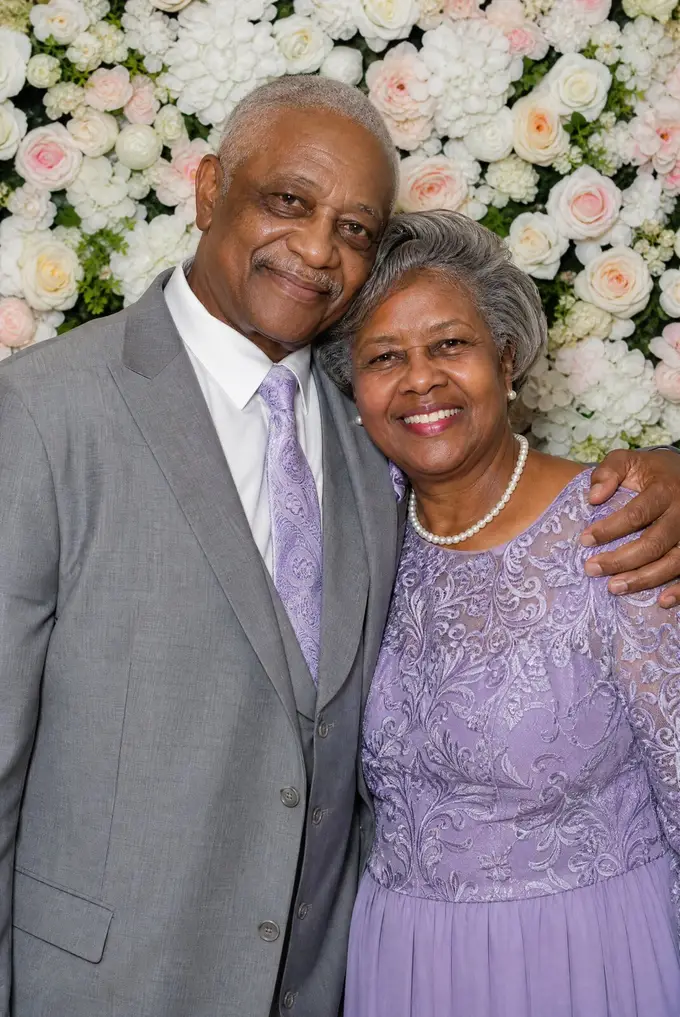
Every photo your booth takes, as it is taken. BoothLoop runs a multi-photo belt on the rear screen: up to three photos stacked on the vertical display, moving up or down, with each new photo sliding into the middle slot. Guests in line see the last few groups, and the people who just stepped out see themselves within seconds.
It reads orientation for you. On a portrait screen, landscape photos run on the belt, and mostly-portrait photos such as template prints switch to full-screen single photos automatically. Videos and GIFs from the booth play on the belt too, muted and looping. See every layout on the photo booth rear screen page.




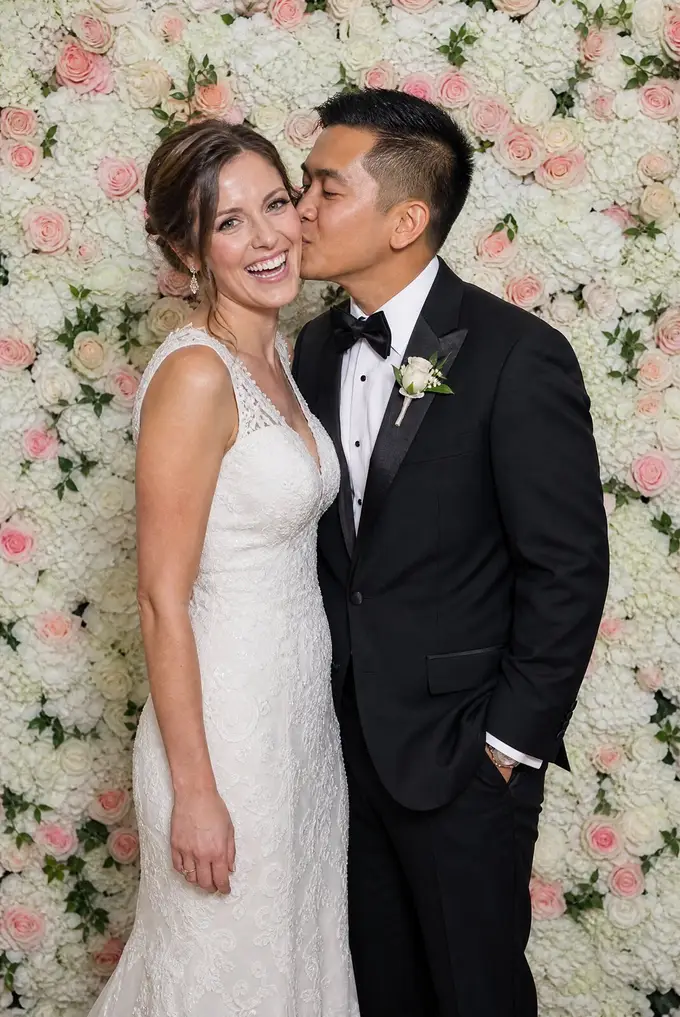
Sarah & Dev
02 / Setup
How do you set up a rear-screen slideshow on a Windows photo booth?
BoothLoop opens in its own Chrome app window. Drag it onto the rear screen, and a short wizard connects it to the event your booth is shooting.
-
01
Pick the event
Today's events from your booth software's folder are listed first. Choose one, or browse to any other folder, including a network share.
-
02
Choose the folders
Singles is ticked for you. Add any other subfolder, such as prints or GIFs. The duplicate originals dslrBooth saves are filtered out.
-
03
Brand it and start
Add your logo, a text bar and a theme, then press Start. Reopen within 8 hours and BoothLoop offers to resume the last event.
03 / The belt
How does the photo belt move?
Pick Stepped motion, where the belt slides one slot in 700 ms and then pauses, or Smooth, where it cruises at a constant speed. Show one, two or three photos at once, moving up or down.
Set gap keeps each photoshoot together. Photos taken within the gap, 5 to 60 seconds and 20 by default, count as one set, and a set is never left with a single orphaned photo. Guests can swipe the belt with a finger, even while the screen is locked.
Belt settings
- Photos on screen
- 1, 2 or 3 (default 3)
- Direction
- Up or Down
- Motion
- Stepped (700 ms slide, then pause) or Smooth
- Set gap
- 5 to 60 s, default 20 s
- Square photos
- Crop or Letterbox
- Timing
- Fixed 0.5 to 120 s per photo, or Auto
- Single-photo transitions
- Fade, Slide, Zoom, Ken Burns
- Shuffle
- By set
04 / Branding
Can you brand the slideshow with your logo?
Yes. Upload a logo in PNG, SVG, JPEG, WebP or GIF up to 5 MB, place it in any corner, and set its size from 5 to 40 percent and its opacity. Add a scrolling text bar for the couple's names, a hashtag or your business name, in one of eight text styles at three speeds. A photo counter can sit in a corner too.
Six themes set the look of the screen around the photos. For couples, our wedding slideshow software guide shows how to dress the rear screen for a reception.
8 text styles
- Static
- Marquee
- Pulse
- Typewriter
- Bounce
- Glow
- Wave
- Slide In
6 themes
- Dark
- Gallery
- Neon
- Minimal
- Warm
- Midnight
05 / Compatibility
Works with LumaBooth for Windows (formerly dslrBooth)
dslrBooth became LumaBooth for Windows with version 8.0. BoothLoop watches its event folders, by default the dated folders in Pictures\dslrBooth, and waits until each file has finished writing before showing it. When the booth software applies a template and rewrites a photo, the rear screen refreshes it.
One Windows PC drives both screens: the booth software on the front screen and BoothLoop on the rear. If you run other Windows capture software, BoothLoop works the same way with any app that saves photos into a folder.
06 / Venue Wi-Fi
Does a dslrBooth slideshow work without internet?
BoothLoop does. Playback, new-photo detection and settings all run on the booth PC, and its app server only accepts connections from that same PC. A ballroom with dead Wi-Fi does not stop the rear screen.
LumaBooth's own slideshow works differently. It shows final prints in a browser at a shareable link and, per LumaBooth's support article, needs internet and Enhanced Sharing. The full comparison is on our live slideshow without internet page.
| Feature | BoothLoop | LumaBooth slideshow |
|---|---|---|
| Internet | Not needed | Required |
| Where it plays | Rear screen of the booth | Browser at a shareable link |
| What it shows | Photos, prints, GIFs, videos | Final prints |
| Extra plan | None | Enhanced Sharing |
07 / Operator controls
How do you keep guests out of the settings?
Lock the screen. The slideshow keeps running and guests can still swipe through photos, but settings stay hidden until you unlock.
Lock
Unlock with a near-invisible corner button whose opacity you set, or three taps in a chosen corner within 2 seconds.
Hide photos
Unlock first. Hold both top corners for 2 seconds to hide a photo, its set, or a selection. Restore them later. Saved per event.
Attract screen
After 1 to 60 minutes idle, show your own image or video. A touch or a new photo brings the belt back. Set one up with our photo booth welcome screen guide.
08 / Hardware
Built for ICON-style booths with a vertical rear screen
Booths like the Everybooth ICON put a 19-inch-class vertical touch screen on the back of the booth. BoothLoop is made to fill that kind of screen with the event as it happens, and it works on any Windows booth with a second portrait monitor.
One honest note: the genuine ICON ships as an iPad booth. BoothLoop needs a Windows PC running LumaBooth for Windows, so an iPad-based ICON would need that PC added. Our guide to photo booth rear screens covers the options.
Not affiliated
09 / Requirements
What do you need to run BoothLoop?
A Windows photo booth PC with a second screen turned to portrait. If your booth already has a vertical rear screen, you have the hardware.
System requirements
- Computer
- Windows PC, the same one that runs your booth software
- Browser
- Google Chrome (BoothLoop opens in its own Chrome app window)
- Booth software
- LumaBooth for Windows (formerly dslrBooth), or any app that saves photos into a folder
- Rear screen
- A second monitor in portrait (vertical) orientation
- Internet
- Not needed at the event
- File types
- JPG, JPEG, PNG, BMP, WebP, GIF, MP4, MOV, WebM, AVI
- Price
- Free during the beta, then $29.99/year for beta users
10 / Pricing
How much does BoothLoop cost?
Nothing during the beta. When the beta ends, beta users keep BoothLoop for $29.99/year, a 1-year license with updates and support. See the BoothLoop pricing page, or read who builds BoothLoop and why.
During beta
$0
After beta
$29.99/yr
FAQ
Questions photo booth owners ask
Is BoothLoop free?
Do I need a LumaBooth subscription to use BoothLoop?
Is LumaBooth the same as dslrBooth?
What is the best free photo booth software for Windows?
What software do you need for a photo booth?
Does BoothLoop work with iPad photo booths?
Does BoothLoop need internet at the venue?
What screen do I need for the rear slideshow?
Can I hide a photo a guest does not want shown?
What happens after I join the beta?
Beta access
Put your next event on the back of the booth.
Tell us about your booths and we will send beta access for your Windows booth PC. It is free while BoothLoop is in beta.
Running an iPad booth? Read which rear-screen setups BoothLoop supports before you join.